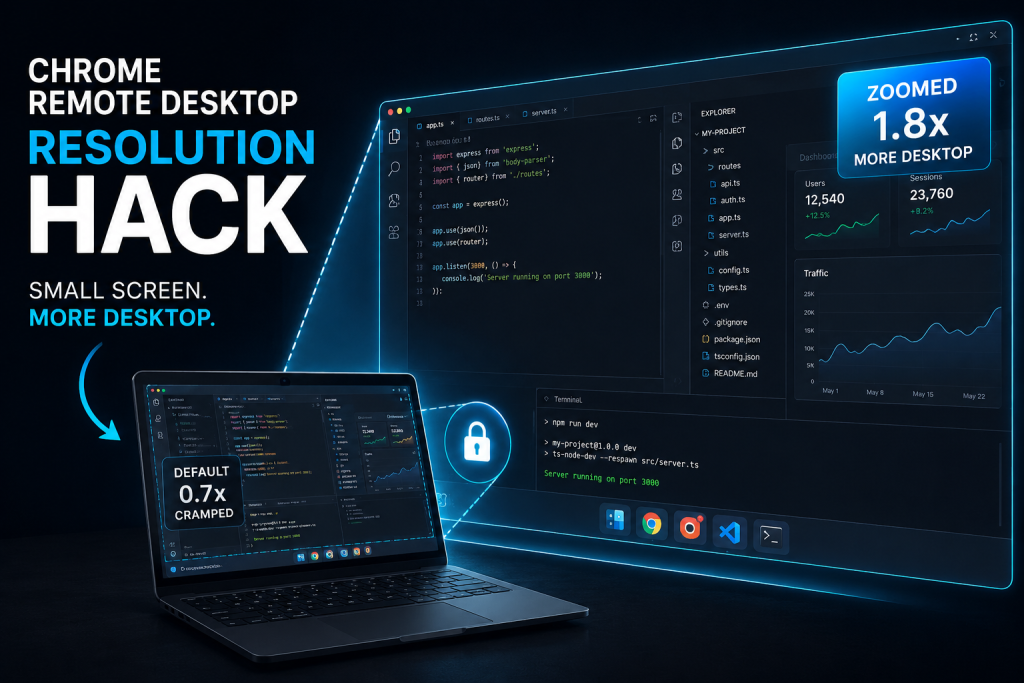
If you’re using Chrome Remote Desktop in curtain mode to connect to a remote PC and are stuck with a low-resolution display on your laptop, you’ve probably noticed that the remote session gets limited to the resolution of your local device. This is especially frustrating when your remote machine supports higher resolutions, but you’re stuck with something like 1366×768. Luckily, there’s a quick and easy solution to force a higher resolution!
The Problem
When connecting via Chrome Remote Desktop, the resolution of the remote session often defaults to the resolution of your local device. This means if your laptop has a low maximum resolution, it will affect the remote desktop session, shrinking your usable workspace.
The Hack: Chrome Command-Line Trick
You can override the scaling of Chrome Remote Desktop by using a command-line argument to trick Chrome into rendering at a different resolution. Here’s how:
- Create a Chrome Remote Desktop Shortcut:
- Right-click your Chrome Remote Desktop icon on the desktop or taskbar and select Properties.
- Add the Scaling Argument:
- In the Target field, after the text that’s already there, add the following
--force-device-scale-factor=0.7 - Adjust the scale factor (
0.7,0.8, etc.) based on your needs. A lower number makes the remote session appear higher-res on your screen.
- In the Target field, after the text that’s already there, add the following
- Apply and Launch:
- Click OK to save the changes and launch Chrome using this shortcut. Connect to your remote desktop session, and you should now see a larger, higher-resolution display despite your laptop’s limitations!
Why This Works
The --force-device-scale-factor command-line flag tells Chrome to adjust the rendering scale, allowing you to fit more of the remote desktop on your screen, even when you’re using curtain mode and a low-resolution laptop.
With this simple trick, you can enjoy a full high-resolution experience, even from a low-res laptop.